The 9 Best Mac Graphic Design Software Options for 2026
Find the best Mac graphic design software for your workflow. We review 9 top tools like Photoshop, Affinity, and Sketch for professionals in 2026.
You're probably in one of three situations right now. You already use a Mac and need better design software than the built-in basics. You're paying for a big subscription stack and wondering if you're using enough of it to justify the cost. Or you're on a team where half the pain isn't designing, it's handing files off cleanly and keeping everyone in sync. Toolradar data: Of the 227 graphic design tools we track, 58 are fully free and 110 are freemium, so Mac designers have plenty to try before paying.
That's what makes choosing Mac graphic design software tricky in 2026. The hard part isn't finding capable tools. It's matching the tool to the kind of work you do every week. Raster editing, vector work, UI systems, social assets, print files, quick internal graphics. They look similar from a distance, but they need different software.
Mac has deep roots in design work for a reason. The Macintosh release in 1984 helped move design from manual production to screen-based workflows, and over the following decade design practice became largely computer-based, as the LACMA history of digital design tools explains. That history still matters because it shaped how many creative teams think about the Mac today.
If you're also balancing school work or trying to keep your setup lean, this guide to student Mac software is a useful companion.
1. Adobe Photoshop
If your work revolves around pixels, Photoshop is still the default answer. Marketing teams, brand designers, photographers, ecommerce people, and anyone building image-heavy campaigns usually end up here because it handles the messy real-world stuff well. Retouching, compositing, masking, layered files, smart objects, and weird client requests all live comfortably in Photoshop.
Photoshop also carries historical weight on Mac. It was developed on an early color-display Macintosh by Thomas and John Knoll and initially released in 1990 as a Mac-exclusive product, a milestone highlighted in this historical account of Photoshop's Mac-first origin. That early Mac exclusivity helped cement the connection between Apple hardware and professional design software.

Where Photoshop earns its keep
Professionals choose Photoshop not for brand loyalty, but for compatibility and depth. If a client sends a PSD, a printer asks for layered revisions, or your teammate needs assets moved into Illustrator, After Effects, or Lightroom, Photoshop usually creates the fewest surprises.
A few practical strengths stand out:
- Best for layered image work: Smart objects, masks, adjustment layers, and filters make complex edits manageable.
- Strong ecosystem: Plugins, tutorials, actions, and hiring familiarity matter when you need support fast.
- Good fit for mixed Adobe stacks: If you already live in Creative Cloud, Photoshop becomes easier to justify.
There's a downside. It's subscription-only, and that changes the buying decision. If you open it every day, that's fine. If you only need it for occasional banner ads, mockups, or cleanup work, the ongoing cost can feel excessive.
Practical rule: Choose Photoshop when file compatibility and workflow depth matter more than licensing simplicity.
For image-heavy Mac graphic design software, Photoshop is the safest professional choice. It's not the most pleasant place to start from scratch, though. New users often hit its complexity wall fast. If you need alternatives focused purely on image work, this best photo editing software guide is worth checking, and if AI-assisted retouching is part of your workflow, you may also want to discover best AI editing software.
Use Photoshop when the job is messy, layered, and likely to change late.
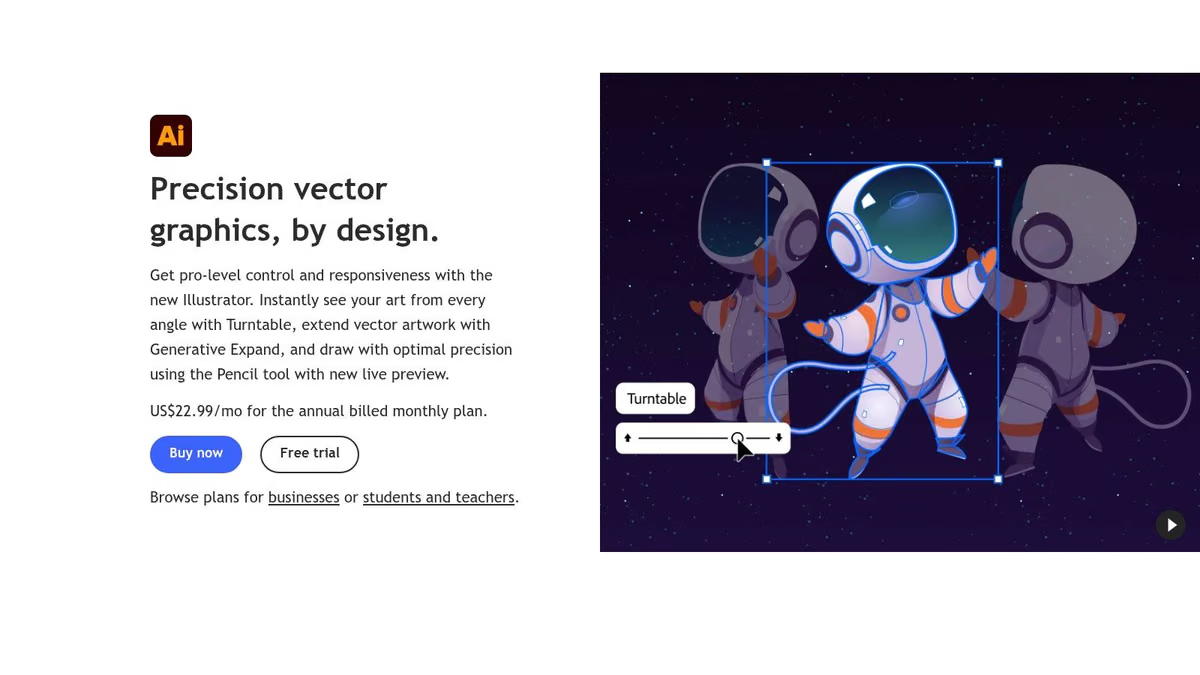
2. Adobe Illustrator
Illustrator is the tool for artwork that has to stay sharp at any size. Logos, icon sets, packaging marks, lockups, typography systems, signage, merch graphics, and print-ready brand assets all fit here. If Photoshop is where you manipulate pixels, Illustrator is where you build assets that need precision.
Its biggest advantage is control. Anchor points, path editing, appearance panels, type handling, and export options are mature enough for demanding production work. For professional identity systems, that still matters a lot.
Best for brand work, not quick sketch work
Illustrator shines when detail matters and starts to drag when you just need to make one quick social graphic. That's the trade-off. It rewards deliberate construction, not speed for speed's sake.
Its greatest strength is:
- Logo and identity systems: Precise vector drawing and scalable outputs.
- Print production: Better control over color and export than lightweight vector apps.
- Typography-heavy design: Stronger type controls than many low-cost alternatives.
If your weekly work includes logo sets, print collateral, dielines, or reusable brand assets, Illustrator earns its subscription. If you mostly create lightweight web graphics, it can feel like bringing a full workshop to tighten one screw.
Illustrator is excellent when revision quality matters. It's less enjoyable when the task is small and the deadline is in 20 minutes.
For Mac graphic design software, Illustrator remains the benchmark vector app, but it's not the automatic choice for every user. A freelancer making logos for clients may love it. A social media manager making fast exports may not.
If logo work is your main concern, this logo design software roundup can help narrow the field. If you also bounce between Photoshop and Illustrator text effects, these expert tips to curve writing in Photoshop may save you a few clicks.
Buy Illustrator for precision. Don't buy it just because it's famous.
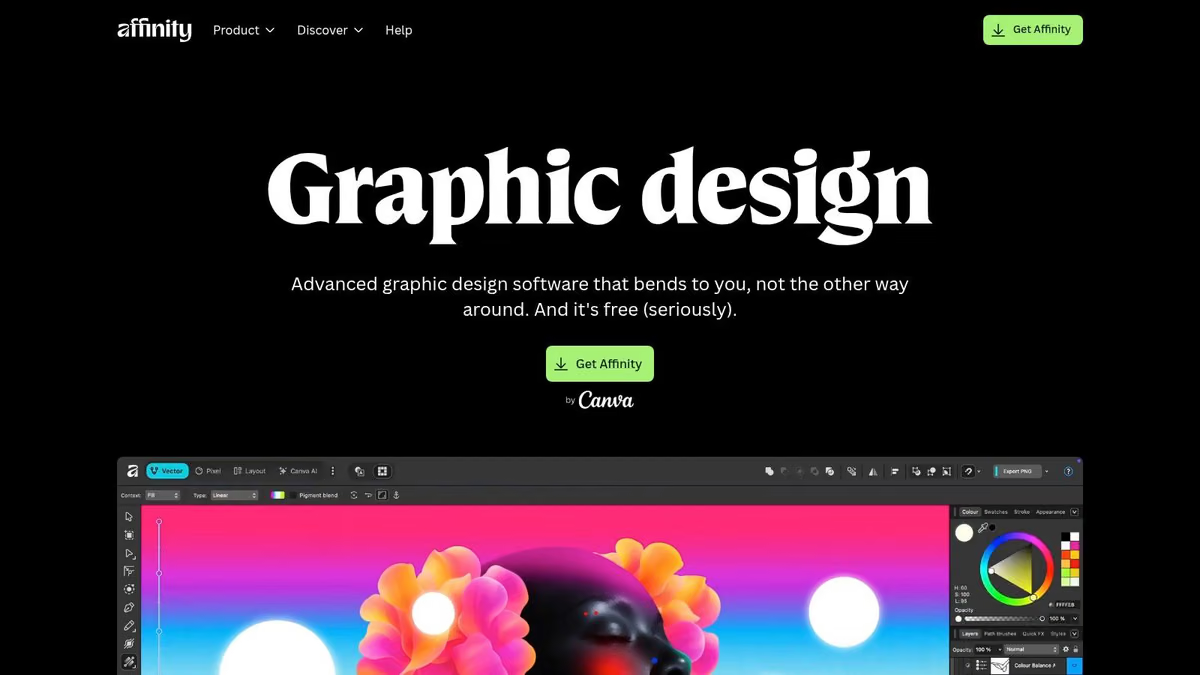
3. Affinity Designer 2
Affinity Designer 2 is the first serious recommendation for people who want pro-grade vector work without signing up for another subscription. It's a strong fit for freelancers, in-house designers, and small studios that need logos, brand assets, UI graphics, and print pieces, but don't need Adobe's ecosystem every day.
The main appeal is simple. It feels modern, fast, and focused. On a Mac, that matters. The interface stays out of the way better than a lot of older suites, and the app generally feels built for people who want to work, not configure.
Why people switch to it
Designer 2 makes the strongest case when your work sits between casual and enterprise. It has enough depth for serious vector work, but it doesn't carry Adobe's overhead. Artboards, shape tools, color support, and strong performance cover most day-to-day design jobs well.
Its practical strengths are easy to summarize:
- One-time purchase appeal: Better fit for designers who hate recurring software bills.
- Fast on Mac hardware: It feels responsive, especially for solo work.
- Good crossover tool: Useful for branding, interface graphics, and print assets.
The limits show up at the edges. If you rely on a massive plugin ecosystem, highly specific agency handoffs, or Adobe-native collaboration habits, you'll notice the gap. It also isn't as universally expected in hiring and client workflows.
Affinity Designer 2 is best for designers who know what they need and don't need everyone else to use the same app. That's a big distinction. Solo professionals can move fast in it. Larger teams usually care more about standardization than software elegance.
For Mac graphic design software, this is one of the best value picks on the list. It's not the default industry standard. It is often the smarter purchase.
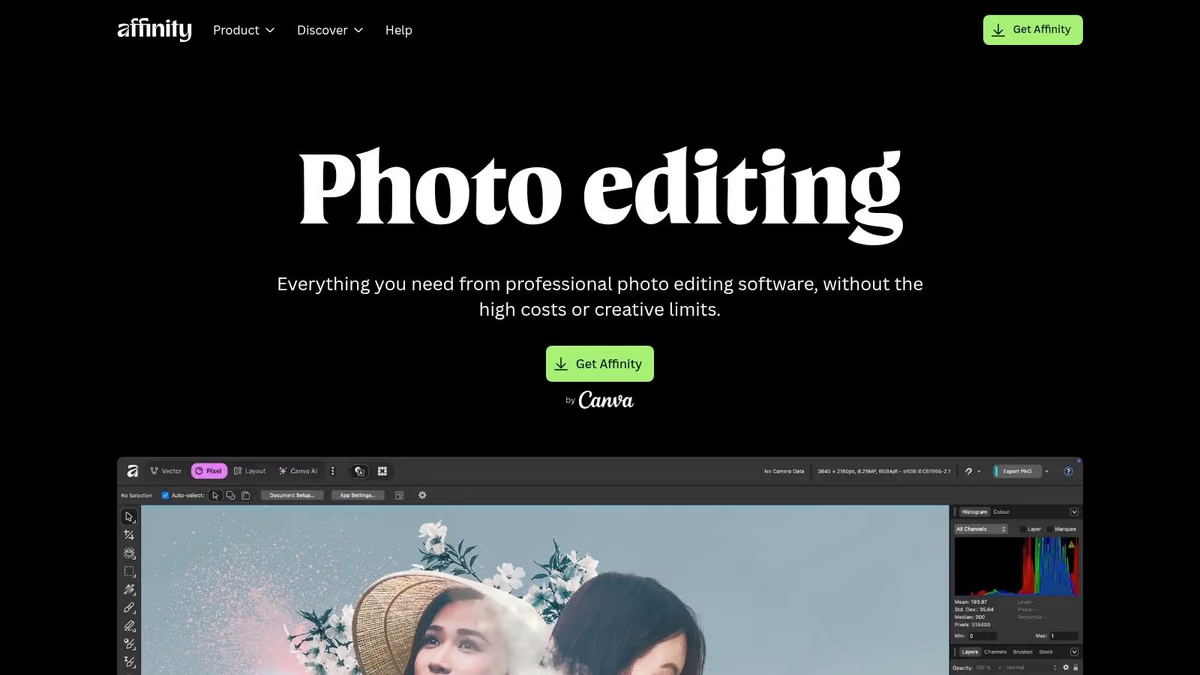
4. Affinity Photo 2
Affinity Photo 2 does for raster editing what Designer 2 does for vector work. It gives you a professional tool without tying you to a subscription. If your work includes retouching, social graphics, layered image edits, ad creative, mockups, or print imagery, it covers a lot more ground than many people expect.
Its best trait is that it feels serious. This isn't a stripped-down budget app pretending to be pro software. You can build layered compositions, run non-destructive edits, process RAW files, and handle demanding image work without feeling boxed in.
Better than cheap. Different from Photoshop
Affinity Photo 2 is strongest when you need depth but not Adobe's surrounding ecosystem. It opens the door to serious image editing for people who don't want monthly costs hanging over occasional client work.
Where it works well:
- Marketing asset production: Social posts, ad variants, web graphics, and composites.
- Photo-heavy brand work: Retouching and image cleanup without moving into Photoshop.
- Cross-app Affinity workflows: Stronger if you also use Designer or Publisher.
Where it falls short is automation and mainstream expectation. Photoshop still has the advantage in plugins, common team workflows, and AI-heavy editing features. If your collaborators assume PSD-first processes, Affinity Photo may add friction even if it can technically do the work.
That's the pattern with Affinity in general. The apps are often excellent for the person using them directly. They become less ideal when the workflow depends on many other people, many shared assets, and established Adobe habits.
For solo Mac users who want powerful image editing without a subscription, Affinity Photo 2 is one of the easiest recommendations here.
5. Pixelmator Pro
Pixelmator Pro is the app I recommend most often to Mac users who want a serious image editor without carrying enterprise software baggage. It's not trying to be the default tool for giant agencies. It's trying to be fast, clean, Mac-native software that handles real work well. Most of the time, it succeeds.
That distinction matters because a lot of Mac graphic design software decisions now come down to native polish versus team portability. Apple's current Mac lineup runs on Apple silicon, and that hardware shift has made buyers pay more attention to whether an app feels built for the platform or merely available on it, as discussed in this look at beginner-friendly Mac design software and the native-versus-cross-platform tradeoff. Pixelmator Pro is firmly in the first camp.
Why it feels better than many bigger apps
Pixelmator Pro feels like a Mac app, not a cross-platform compromise. The interface is clean, the performance is snappy, and many daily edits are quicker because the software doesn't bury common actions under layers of UI complexity. If you spend all day in macOS, that smoother fit adds up.
Its machine-learning tools are also practical rather than flashy. Upscaling, cleanup, denoise, and enhancement features help with repetitive production work. That's useful for ecommerce images, quick campaign revisions, and asset cleanup jobs where speed matters more than endless tweakability.
Three reasons it works so well for the right person:
- Mac-first performance: Strong fit for Apple-centric workflows and modern Mac hardware.
- One-time purchase: Easier to justify for freelancers and in-house creatives who don't need Adobe every day.
- Less friction: Faster to learn than Photoshop for many common tasks.
Where Pixelmator Pro stops being the right answer
It's not ideal for teams that span Mac and Windows. It's also not the best choice when your job depends on universal file expectations, plugin depth, or shared enterprise workflows. If your coworkers live in Creative Cloud or your clients send layered Adobe files constantly, Pixelmator Pro can become the side tool rather than the main one.
That's the honest trade-off. Pixelmator Pro is polished, capable, and efficient. It's also narrower. For a solo Mac user, that narrowness can be a strength because it removes clutter. For a mixed-device team, it can be a problem.
Use Pixelmator Pro when the Mac itself is part of your workflow advantage, not just the computer you happened to buy.
For image-focused Mac graphic design software, it's one of the smartest buys on this list. It won't replace every pro stack. It will replace more of them than people expect.
You can see the app directly on the Pixelmator Pro product page at Toolradar.
6. Figma
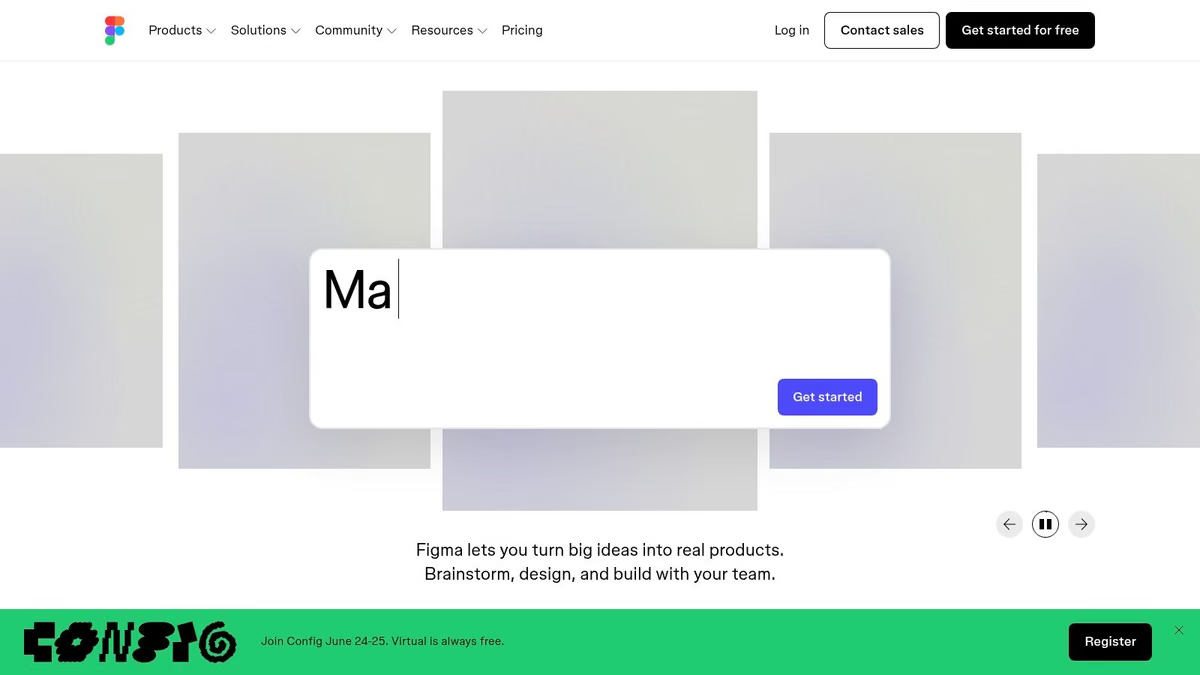
A typical Figma job starts with three people in the file before the design is finished. A product designer is refining a flow, a PM is commenting on copy and scope, and a developer is checking spacing, states, and component logic. That working style is the reason to choose Figma on a Mac. It keeps the work, the feedback, and the handoff in one place.
Best for interface work that involves other people
Figma fits a specific branch of graphic design. It is strongest for product UI, web layouts, prototypes, shared component libraries, and design systems. If your work is mainly vector illustration, photo editing, or print production, other tools on this list are a better primary app. If your work lives in screens and gets reviewed constantly, Figma usually saves more time than a more Mac-native editor.
That is the main trade-off.
On Mac, Figma is good enough as an app, but the product still feels browser-centered. Some designers will not care. Others will notice it every day, especially if they value native Mac responsiveness and a quieter editing environment. Sketch still has an edge there. Figma wins on shared access, team visibility, and the fact that nobody needs the same hardware or even the same operating system to join the work.
It is a strong fit for:
- UI and UX teams: Components, variables, prototyping, and developer handoff are all part of the same workflow.
- Cross-functional product groups: PMs, engineers, marketers, and stakeholders can review the actual file instead of a pile of exports.
- Teams standardizing systems: Shared libraries and documented patterns are easier to maintain when the tool is built around collaboration.
The weak spots matter too. Figma is not where I would choose to do serious raster editing, detailed illustration, or print-heavy production. Subscription costs also make more sense for active teams than for solo designers who mainly need a polished editor and occasional sharing.
Choose Figma when collaboration is part of the deliverable, not just part of the approval process.
For Mac users comparing tools by workflow, Figma is the team-first option in this list. Sketch is the stronger editor-first option for many solo Mac designers. If your projects revolve around product screens and interaction design, this UI and UX design software guide is the right next reference.
7. Sketch
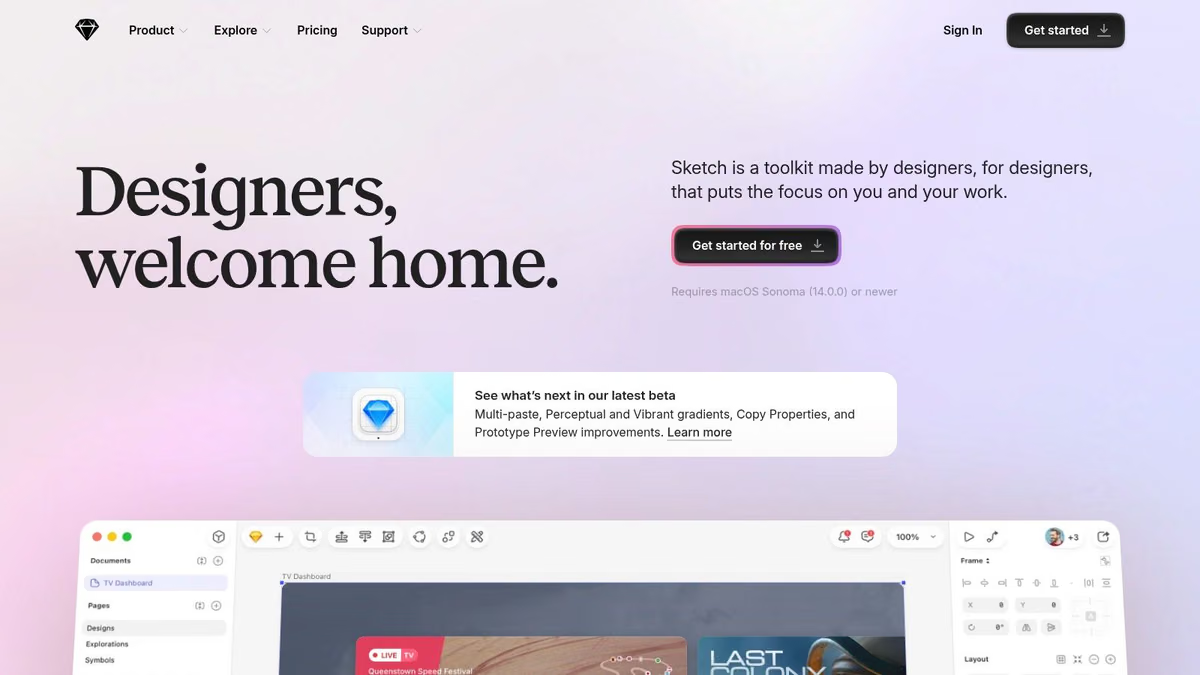
Sketch still makes a strong case for Mac users who care about interface design and want a native editor that feels polished. It doesn't dominate the conversation the way it once did, but it remains one of the most pleasant design tools to use on macOS. That alone matters if you spend long hours inside one app.
Its advantage is straightforward. Sketch was built around Mac workflows first, and you can still feel that in the editor. It's cleaner and calmer than many tools that have had to stretch across every platform and user type.
The Mac-native alternative to Figma
If Figma is the collaboration-first pick, Sketch is the editor-first pick. For designers who do most of the creation work on a Mac and only need collaboration around the edges, Sketch can feel better day to day.
It fits best in these situations:
- Solo product designers on Mac: Strong creation environment without web-first clutter.
- Teams that want licensing flexibility: Useful when not everyone needs the same level of access.
- Designers who value native feel: The app experience is a real differentiator.
Its biggest issue is market gravity. Figma has become the easier default for cross-functional teams, especially when many collaborators don't use Macs. Sketch can still work very well, but it asks you to be a bit more intentional about your setup and team habits.
If your organization is all-in on browser-based collaboration, Sketch will feel like the less convenient choice. If your actual design work happens mainly on a Mac and you're tired of web-app ergonomics, Sketch deserves a serious look.
That makes it one of the more nuanced options in Mac graphic design software. It's not the broadest tool. It may be the nicest one to use in its category.
8. CorelDRAW Graphics Suite for Mac
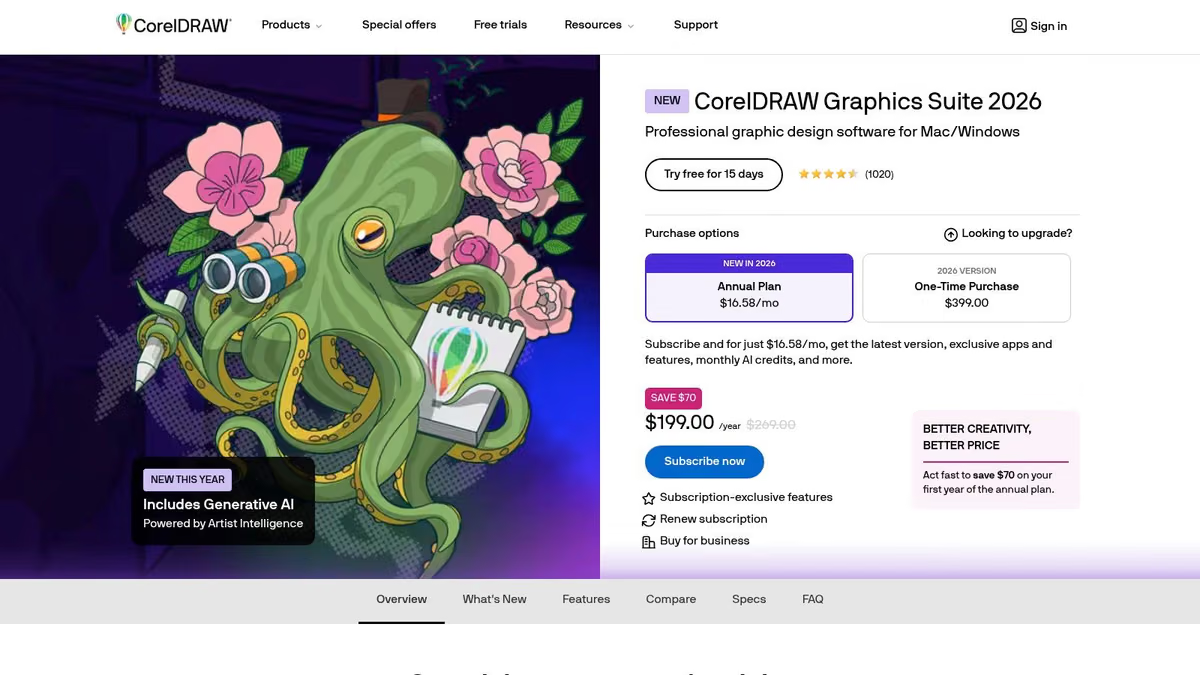
CorelDRAW Graphics Suite for Mac is the sleeper option for people who do serious print, technical illustration, signage, or production-heavy vector work. It doesn't get talked about as much in Mac circles, but it covers a lot of ground for users who need more than a lightweight logo app and don't want to lock themselves into Adobe.
This is less of a trendy choice and more of a practical one. CorelDRAW has long been useful for production environments where precision, layout control, and output flexibility matter more than buzz.
Strong for print-minded designers
If your work includes packaging, multi-page materials, technical diagrams, or vector tracing, CorelDRAW is more compelling than its lower profile suggests. The suite approach also helps if you prefer one ecosystem for several related tasks instead of juggling multiple apps.
Its practical wins:
- Print and production depth: Better fit for prepress-heavy work than many lightweight alternatives.
- Suite model: Vector, layout, and image tools in one package.
- License flexibility: Helpful if you want options beyond pure subscription.
The downside is feel. Compared with some newer Mac-native tools, the interface can seem less modern. Mac users who prioritize elegance and simplicity may bounce off it fast. You also need to check feature parity carefully if your workflow depends on specific companion tools across operating systems.
CorelDRAW is rarely the coolest answer. It is often a very sensible one for production-oriented designers who care more about output than aesthetics inside the app.
9. Linearity Curve
Linearity Curve is the easiest vector app on this list to recommend to newer designers, fast-moving marketers, and Apple users who want a modern interface without a heavy learning curve. It sits in the sweet spot between approachable and capable. That's harder to find than it should be.
It's especially useful for logos, social graphics, lightweight print jobs, and digital assets that need to move between Mac and iPad cleanly. For many users, that cross-device flexibility is the whole point.
Best for fast vector work without the baggage
Linearity Curve doesn't try to out-Illustrator Illustrator. That's smart. Instead, it focuses on getting you productive quickly and supporting the kinds of work many freelancers and content teams perform.
That makes it a good fit for:
- Light brand work: Logos, icons, social templates, and promo assets.
- Apple-centric creators: Smooth movement between Mac, iPad, and iPhone.
- Budget-conscious users: Easier entry point than heavyweight pro suites.
It does have limits. If you work in print production every day, or your typography and prepress standards are demanding, you'll probably outgrow it. The same goes for highly specialized plugin-dependent workflows.
There's another practical angle worth keeping in mind. Many people don't need full design software for every task. Apple's own built-in apps like Pages, Keynote, Freeform, and Preview can handle a surprising amount of basic visual work, including custom canvas setups like 800×600 pixels, as shown in this tutorial on making graphics on a Mac without third-party apps. Linearity Curve is a good upgrade from those basics when you need real vector control but don't need a full enterprise design stack.
Top 9 Mac Graphic Design Software Comparison
| Tool | Core features ✨ | UX & quality ★ | Value & pricing 💰 | Target audience 👥 | Standout 🏆 |
|---|---|---|---|---|---|
| Adobe Photoshop | ✨ Generative AI (Firefly), full raster toolset, cloud apps & plugins | ★★★★★, pro-grade; steep learning curve | 💰 Subscription, high ongoing cost | 👥 Photographers, brand/marketing teams, studios | 🏆 Industry standard; largest ecosystem |
| Adobe Illustrator | ✨ Industry-leading vector drawing, typography, cloud docs | ★★★★☆, precision tools; complex for quick tasks | 💰 Subscription; better value in multi‑app bundles | 👥 Logo/brand designers, print professionals | 🏆 Best-in-class vector precision & export |
| Affinity Designer 2 | ✨ Advanced vector tools, CMYK/spot support, StudioLink | ★★★★☆, fast, macOS-native UI | 💰 One-time license, excellent long-term value | 👥 Freelancers, budget-conscious pros | 🏆 Perpetual license + speed |
| Affinity Photo 2 | ✨ Non-destructive edits, RAW/HDR, StudioLink integration | ★★★★☆, pro retouching tools; efficient | 💰 One-time license, high value; strong PSD support | 👥 Photographers, retouchers, marketers | 🏆 Photoshop alternative with perpetual license |
| Pixelmator Pro | ✨ ML Enhance, Super Resolution, Metal & Apple Silicon optimized | ★★★★☆, blazing-fast, fluid Mac UI | 💰 One-time purchase, affordable pro app | 👥 Mac-only users, solo creators | 🏆 Mac-native speed with ML automation |
| Figma | ✨ Real-time multi-editor collaboration, Dev Mode, design systems | ★★★★☆, collaboration-first; web-dependent | 💰 Freemium → per-editor pricing can scale costly | 👥 Distributed product/design teams | 🏆 Best-in-class collaboration & handoff |
| Sketch | ✨ Native Mac editor, web workspace, version history | ★★★★☆, polished Mac experience; limited web features | 💰 Flexible: perpetual Mac license or subscription | 👥 Mac-native designers & studios | 🏆 Polished Mac UX + licensing flexibility |
| CorelDRAW Graphics Suite (Mac) | ✨ Vector, page layout, PHOTO-PAINT, PowerTRACE | ★★★☆☆, mature toolset; UI less modern | 💰 Subscription or perpetual, flexible pricing | 👥 Print/technical illustrators, brand shops | 🏆 Comprehensive print & layout suite |
| Linearity Curve | ✨ Cross-device vector tools, Auto-Trace, background removal | ★★★★☆, modern UI; easy onboarding | 💰 Generous free tier; affordable Pro plan | 👥 Social designers, iPad/Mac creatives | 🏆 Free tier + seamless Mac/iPad workflow |
Beyond the App and Building Your Creative Workflow
A common Mac design setup goes wrong in a familiar way. A solo designer buys the app with the best-looking feature page, then hits a wall on the first real job. The files do not hand off cleanly, the team cannot comment where work is happening, or the monthly bill keeps growing long after the excitement wears off.
The better approach is to choose for the work you repeat every week.
Start with workflow type. Raster-heavy work, photo composites, campaign assets, and retouching call for Photoshop, Affinity Photo 2, or Pixelmator Pro. Brand systems, logo design, packaging, and illustration usually fit Illustrator, Affinity Designer 2, CorelDRAW, or Linearity Curve better. Product UI, design systems, and shared interface work belong in Figma or Sketch. Trying to force one category to cover all three usually creates friction somewhere, either in editing depth, export control, or collaboration.
Then look at licensing with clear eyes. Subscription software earns its keep when compatibility, cloud features, and shared standards directly affect revenue or delivery speed. One-time purchase apps are often the smarter buy for freelancers, in-house generalists, and small studios that want costs they can predict. Affinity and Pixelmator Pro stand out here because they stay capable under real production use. They are not placeholders while you save for something else.
Team structure changes the decision just as much as features do.
If the work stays on one Mac, interface speed, local performance, and personal preference matter a lot. If files move between designers, marketers, developers, or clients, other factors move to the top of the list. Shared libraries, version control, browser review, commenting, and handoff details can outweigh pure editing experience. That is why a designer may prefer Sketch or Pixelmator Pro for personal work and still standardize on Figma or Adobe at work.
Broader market trends support that split. Analysts at SNS Insider report continued growth in graphic design software, with demand tied to cloud tools, subscription models, digital marketing work, and newer production technology, according to SNS Insider's graphic design software market report. In practical terms, buyers are choosing tools that fit both the creative task and the operating model around it, especially review cycles, deployment, and ongoing updates.
As noted earlier, outside market summaries point in the same direction. Pixel editors, vector tools, and collaboration platforms are all growing because they solve different jobs. That matters more than brand familiarity.
Run a real test before you commit. Build a logo package, export a campaign asset set, revise a landing page banner, or hand off a product screen flow to a developer. One afternoon with an actual project will tell you more than any feature matrix.
Toolradar is useful once you've narrowed the field but still need to compare trade-offs clearly. You can browse software by category, check experience-based reviews, and line up related tools for the rest of your stack, from design and collaboration apps to AI and productivity software, on Toolradar.
From the team behind Toolradar
Show up when someone asks ChatGPT
ChatGPT, Claude, and Perplexity already retrieve Toolradar. We run the content that keeps you in those answers, and the 6 newsletters that put you in front of buyers directly.
See how we work- mac graphic design software
- graphic design tools
- mac software
- adobe alternatives
- vector design apps

Written by