OBS Studio is the best screen recorder for Windows for most people: it is free, open source, supports Windows 10 and 11, and has no recording limit or watermark. Pick ShareX for free quick clips and GIFs, Bandicam for game capture with a one-time $77 list-price license, Camtasia for polished tutorials, or Loom at $15 per user a month (annual) for async video messages.
Ten Windows recorders sorted by job (gaming, tutorials, async video), with recording limits and three-year costs.
Some links on this page are affiliate links: if you sign up through one, Toolradar may earn a commission. Commissions never change our ranking or what we write. How we make money
Windows has more good free screen recorders than any other platform, so the real question is not whether to pay but what job you are recording for. Game capture wants high frame rates and no time limit, tutorials want an editor, and async messages want instant share links. We think most Windows users should start with a free tool and pay only when a specific gap, such as editing or hosting, costs them time.
Toolradar data: our screen recording category tracks 120 tools, and 73%% of them offer a free or freemium plan, so a paid recorder has to beat a long list of free ones. The screen recording statistics cover the whole category across platforms.
Methodology: we compared ten catalog tools, chosen from the 120 screen recorders we track, on vendor-published prices, plan limits and Windows support, all checked October 28, 2026. Mac users should read our Mac screen recorder guide instead, since several Mac favorites do not run on Windows.
Top Picks
Selected by comparing vendor-published plans, prices, recording limits and Windows support for three jobs: game capture, tutorials and async video messages. How we rate

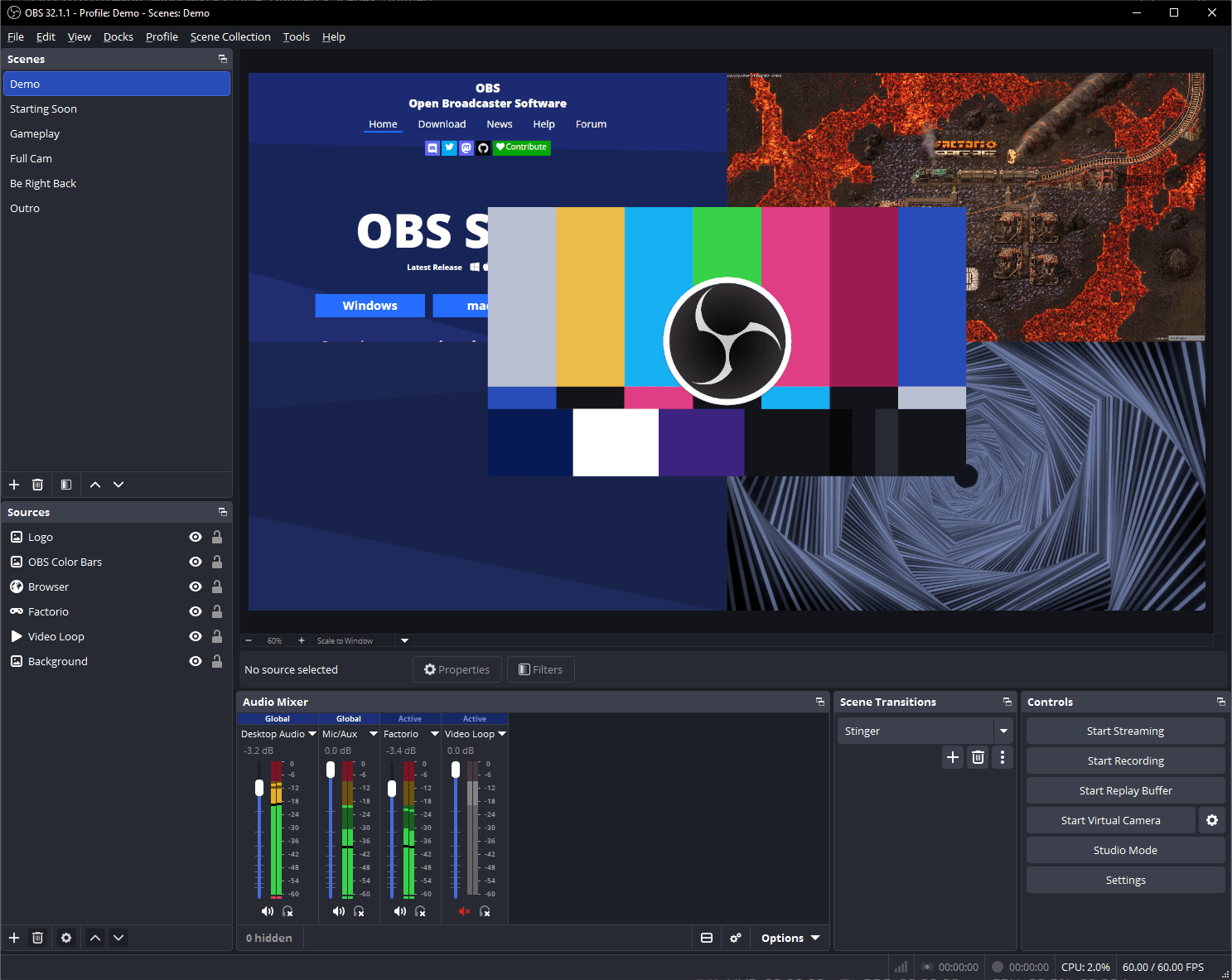
Free, open-source recording and streaming software with scenes, sources and an audio mixer.
Starting price
Free
4.7 (1,212 reviews)
Best for
Anyone on Windows who wants unlimited, watermark-free recording, especially gamers and streamers.
A free, open-source Windows capture tool for screenshots, screen recordings and GIFs.
Starting price
Free
4.8 (102 reviews)
Best for
Power users who want fast clips, GIFs and screenshots with automated sharing.

TechSmith's screen recorder and video editor for tutorials, training and product videos.
Starting price
Yearly subscription; check TechSmith
4.6 (2,217 reviews)
Best for
Trainers and creators who publish edited tutorials regularly.
| Tool | Starting price | Rating | Best for |
|---|---|---|---|
| OBS Studio | Free | 4.7 1,212 reviews | Anyone on Windows who wants unlimited, watermark-free recording, especially gamers and streamers. |
| ShareX | Free | 4.8 102 reviews | Power users who want fast clips, GIFs and screenshots with automated sharing. |
| Camtasia | Yearly subscription; check TechSmith | 4.6 2,217 reviews | Trainers and creators who publish edited tutorials regularly. |
| Bandicam | Perpetual license $77 list price | 4.2 358 reviews | Gamers who want a simpler recorder than OBS and prefer paying once. |
| Loom | Free; Business $15/user/mo annual | 4.7 2,944 reviews | Teams replacing meetings with short recorded updates. |
| Snagit | Yearly subscription; check TechSmith | 4.7 6,491 reviews | Documentation writers and support teams who mix screenshots and short videos. |
| ScreenPal | Free; Deluxe $4/mo paid annually | 4.5 240 reviews | Teachers and small teams making frequent short tutorials on a small budget. |
| Clipchamp | Free; premium with Microsoft 365 | 4.2 150 reviews | Windows users who want to record and edit for free in one app. |
| Descript Visit | Free; Hobbyist $16/mo annual | 4.6 1,106 reviews | Creators who talk through recordings and want to edit by text. |
| Cap | Free personal; $58 lifetime license | n/a | Solo creators who want Loom-style links without a monthly fee. |
OBS Studio
Free, open-source recording and streaming software with scenes, sources and an audio mixer.
- Starting price
- Free
- Free plan
- Free to use
- Rating
- 4.7 (1,212 reviews)
Best for: Anyone on Windows who wants unlimited, watermark-free recording, especially gamers and streamers.
- Pro: Free and open source with no time limit or watermark.
- Pro: Unlimited scenes from windows, webcams, capture cards, images and browser sources.
- Pro: Audio mixer with per-source noise suppression and gain, plus VST plugin support.
- Con: No built-in video editor, so tutorials need a second app.
- Con: Scene and output settings take setup time compared with one-click recorders.
OBS Studio offers an incredibly generous pricing model as it is 100% free and open-source.
ShareX
A free, open-source Windows capture tool for screenshots, screen recordings and GIFs.
- 4.8 on G2 (80 reviews)
- 4.8 on Capterra (19 reviews)
- 5.0 on SourceForge (3 reviews)
- Starting price
- Free
- Free plan
- Free to use
- Rating
- 4.8 (102 reviews)
Best for: Power users who want fast clips, GIFs and screenshots with automated sharing.
- Pro: Completely free, open source and ad-free, with 18+ years of active development.
- Pro: Records video and GIFs alongside screenshots, OCR and scrolling capture.
- Pro: Uploads to a wide range of destinations, including custom uploaders.
- Con: Windows only, so it cannot follow you to a Mac.
- Con: No timeline editor for longer tutorials.
ShareX offers an incredibly generous pricing model, as it is completely free and open-source.
Watch out
Potential costs for third-party storage services.
- Starting price
- Yearly subscription; check TechSmith
- Free plan
- No
- Rating
- 4.6 (2,217 reviews)
Best for: Trainers and creators who publish edited tutorials regularly.
- Pro: Recording and a full editor in one app, with AI text-based editing and filler-word removal on Essentials.
- Pro: Supports Windows 10 and 11 and macOS 14+.
- Pro: 14-day money-back guarantee and up to 25 videos hosted on Screencast.
- Con: Sold only as a yearly subscription, and the entry plan's editor is watermarked.
- Con: Individual plans are non-transferable.
This structure is best for individuals or small teams needing robust screen recording and basic editing without breaking the bank.

Bandicam
A lightweight Windows recorder with screen, game and webcam modes and a one-time license option.
- 4.0 on Trustpilot (190 reviews)
- 4.4 on Capterra (126 reviews)
- 4.4 on G2 (42 reviews)
- Starting price
- Perpetual license $77 list price
- Free plan
- Free to use
- Rating
- 4.2 (358 reviews)
Best for: Gamers who want a simpler recorder than OBS and prefer paying once.
- Pro: Dedicated game recording mode plus screen and webcam recording.
- Pro: Perpetual license removes the watermark and time limit for good on that version.
- Pro: Free version records without a watermark.
- Con: Free recordings stop at 5 minutes, and trimmed free exports are watermarked.
- Con: Commercial use needs the Business License, $65.95 a year at list price per PC.
Bandicam's pricing is extremely generous with its free download option, making it accessible to anyone needing basic screen capture.
Watch out
Potential watermarks on free version

- Starting price
- Free; Business $15/user/mo annual
- Free plan
- Yes
- Rating
- 4.7 (2,944 reviews)
Best for: Teams replacing meetings with short recorded updates.
- Pro: Free Starter plan for up to 50 members with transcriptions in 50+ languages.
- Pro: Business removes the video and length caps and Loom branding.
- Pro: Apps for Windows, Mac, iOS and Android.
- Con: Starter caps each person at 25 videos of 5 minutes.
- Con: Business costs $18 per user on monthly billing, and Loom AI needs Business + AI at $24.
Loom's pricing is generally fair, offering a generous free tier for basic use.

- Starting price
- Yearly subscription; check TechSmith
- Free plan
- No
- Rating
- 4.7 (6,491 reviews)
Best for: Documentation writers and support teams who mix screenshots and short videos.
- Pro: Screenshot editing, SOP and guide creation and screen recording in one tool.
- Pro: Windows 10 and 11 support with live chat support.
- Pro: 14-day money-back guarantee.
- Con: Subscription only, billed yearly per user, with non-transferable personal licenses.
- Con: Not built for long recordings or heavy video editing.
It's best for individuals and small businesses needing a robust, one-time purchase screen capture and recording tool.

- Starting price
- Free; Deluxe $4/mo paid annually
- Free plan
- Yes
- Rating
- 4.5 (240 reviews)
Best for: Teachers and small teams making frequent short tutorials on a small budget.
- Pro: Deluxe removes the recording limit and hosts unlimited videos.
- Pro: Full video editor and AI speech-to-text captions from Deluxe.
- Pro: Max at $10 a month (annual) adds AI narration and unlimited quizzes.
- Con: Free plan limits recordings to 15 minutes and 10 hosted videos.
- Con: Paid prices are for annual billing, so you pay a year up front.
The free tier is also a good starting point for basic needs.
Watch out
Premier features add 100% cost
- Starting price
- Free; premium with Microsoft 365
- Free plan
- Yes
- Rating
- 4.2 (150 reviews)
Best for: Windows users who want to record and edit for free in one app.
- Pro: Free plan exports unlimited videos at up to 1080p with no watermark.
- Pro: AI subtitles, voiceovers and silence removal on the free plan.
- Pro: Premium features, including 4K exports, come with Microsoft 365 Personal and Family.
- Con: 4K exports and premium stock need a Microsoft 365 subscription.
- Con: An editor first, with fewer capture controls than OBS or Bandicam.
Clipchamp's pricing is incredibly generous, offering a robust free tier with 1080p exports and a premium tier included with Microsoft 365 subscriptions.

- Starting price
- Free; Hobbyist $16/mo annual
- Free plan
- Yes
- Rating
- 4.6 (1,106 reviews)
Best for: Creators who talk through recordings and want to edit by text.
- Pro: Text-based editing with Studio Sound and filler-word removal.
- Pro: Hobbyist includes 10 media hours a month and 1080p watermark-free exports.
- Pro: Creator adds 4K exports and 30 media hours a month.
- Con: Free plan exports only at 720p.
- Con: Monthly billing raises Hobbyist to $24, and media hours cap heavy use.
Descript's pricing is generally fair, offering a generous Free tier and a well-structured progression.
Watch out
Overage fees for exceeding media minutes

- Starting price
- Free personal; $58 lifetime license
- Free plan
- Yes
Best for: Solo creators who want Loom-style links without a monthly fee.
- Pro: Free for personal use with no time limit on local recordings.
- Pro: Desktop License is a one-time purchase, or $29 a year, with commercial rights.
- Pro: Open source and self-hostable, with a migration path from Loom.
- Con: Commercial use needs a paid plan.
- Con: Cloud sharing for teams is Cap Pro at $12 per user a month.
Cap offers a generous Free tier with unlimited recordings, which is great for basic users.
Other Screen Recording tools worth considering
More published tools from our Screen Recording category, ordered by our category ranking. They are not part of the editorial picks above.














Three kinds of Windows screen recorder
A Windows screen recorder is software that captures your display, and usually your microphone, system audio and webcam, to a video file or a share link. The tools in this guide fall into three groups, and picking the group first saves most of the comparison work.
Capture-first recorders (OBS Studio, ShareX, Bandicam) save a local file with as little friction as possible. OBS builds scenes from windows, webcams, capture cards and browser sources; Bandicam adds a dedicated game recorder; ShareX is a lightweight capture tool that also records video and GIFs.
Tutorial suites (Camtasia, Snagit, ScreenPal, Descript, Clipchamp) pair recording with an editor for cuts, captions, callouts and exports. Descript edits video by editing the transcript, and Clipchamp's free plan exports at up to 1080p without a watermark.
Async video tools (Loom, Cap) record a message and give you a link to share instead of a file. Loom hosts the video and shows comments and reactions; Cap does the same and is open source, with a free tier for personal use.
How much does a Windows screen recorder cost over three years?
Free tools cover most needs, so the cost question is what a paid tool adds per year. Using list prices read October 28, 2026, here is what one person pays over three years; the totals are our arithmetic.
- OBS Studio, ShareX, Clipchamp free plan: $0.
- Cap Desktop License, one-time: $58, or $29 a year if you prefer the renewing license.
- Bandicam personal perpetual license: $77 at list price, once (currently shown at $53.90 on a limited-time discount). The annual license is currently shown at $33.26 a year, marked as a 10% discount, so about $100 over three years at that price.
- ScreenPal Deluxe: $4 a month paid annually, so $48 a year and $144 over three years.
- Tella Pro: $13 a month billed annually, $468 over three years.
- Loom Business: $180 a year on annual billing, $540 over three years, or $648 at $18 a month.
- Descript Hobbyist: $16 a month billed annually, $576 over three years.
By job, the picture is clear. Game capture is cheapest on OBS for $0, and Bandicam is the paid option for people who want a simpler game recorder, at a one-time cost. Tutorials cost $0 on Clipchamp's free plan, about $144 on ScreenPal, or a yearly Camtasia subscription for the most complete editor. Async video is free on Loom's Starter plan if you stay within 25 videos per person and 5 minutes each, and $540 over three years once you outgrow it.
Key Features to Look For
Recording limits on free plans (Essential)
Free tiers often cap length: Loom Starter at 5 minutes, Bandicam's free version at 5 minutes per recording, ScreenPal Free at 15 minutes. OBS Studio, ShareX and Cap's personal tier set no time limit on local recordings.
Watermarks (Essential)
Check exports, not just recordings. Clipchamp's free plan exports 1080p without a watermark, while Bandicam's free version watermarks trimmed exports and Descript's free plan is limited to 720p.
Game and high-frame-rate capture (Important)
Gamers need a recorder that handles fullscreen games and high frame rates. OBS supports capture cards and game sources, and Bandicam ships a dedicated game recording mode.
Built-in editor (Important)
Tutorial makers save hours with trimming, captions and callouts in the same app. Camtasia, ScreenPal, Descript and Clipchamp include editors; OBS and ShareX need a separate editor.
Share links and hosting (Important)
Async video depends on instant links with comments. Loom and Cap host videos for you, and Tella and ScreenPal also host and share.
Commercial-use terms (Nice to have)
Some free or personal licenses exclude work use. Bandicam requires a Business License for commercial use, and Cap requires a paid plan for commercial recordings.
Choose by the job you are recording
-
Gaming or streaming: start with OBS Studio; consider Bandicam only if you want a simpler game recorder with a one-time license.
-
Work use: confirm the license allows commercial use before recording client or company material on a free or personal tier.
Evaluation Checklist
Record 10 minutes of your real use case and confirm no time limit or watermark stops you.
Record system audio and microphone together and check they stay in sync.
For games, record a fullscreen game at your target frame rate and check for dropped frames.
Export once at 1080p and check the file size and whether a watermark appears.
For async tools, share a link and check what viewers see without an account.
Read the license for commercial use before recording for work.
Pricing Overview
Free
$0
One-time license
Cap's lifetime Desktop License and Bandicam's perpetual license: pay once, no renewal for the version you buy.
From $58 once
Low-cost subscription
ScreenPal Deluxe, Tella Pro and Descript Hobbyist: editing, hosting or transcript tools for one creator.
$4 to $16/mo billed annually
Team async video
Loom Business and Business + AI: unlimited videos, no length cap and Loom AI on the higher tier.
$15 to $24 per user/mo
Pricing Comparison
| Tool | Free option | Paid price | Best Windows job |
|---|---|---|---|
Free and open source | None | Game capture and streaming | |
Free and open source | None | Quick clips, GIFs and screenshots | |
Camtasia | Watermarked editor on the entry plan | Yearly subscription; check the current price on TechSmith's site | Polished tutorials and training |
Bandicam | Free version, 5 minutes per recording | Perpetual $77 list; annual $33.26/yr shown at 10% off | Game recording with a one-time license |
Loom | Starter: 25 videos, 5 min each | Business $15/user/mo annual ($180/yr) or $18 monthly | Async video messages |
Snagit | None | Yearly subscription; check the current price on TechSmith's site | Screenshots, short clips and guides |
Free: 15-minute limit, 10 hosted videos | Deluxe $4/mo, Max $10/mo, paid annually | Low-cost tutorials and classroom video | |
Clipchamp | Free: 1080p exports, no watermark | Premium with Microsoft 365 Personal or Family | Record and edit in one free app |
Descript | Free: 720p exports | Hobbyist $16/mo annual or $24 monthly | Editing recordings by transcript |
Cap | Free for personal use | Desktop $58 once or $29/yr; Pro $12/user/mo | Open-source Loom-style links |
Prices checked October 28, 2026 on OBS Studio, ShareX, Camtasia store, Snagit store, Bandicam buy page, Bandicam free version, Loom pricing, ScreenPal plans, Clipchamp pricing, Descript pricing, Tella pricing and Cap pricing. Totals are our arithmetic.
Mistakes to Avoid
- ×
Paying for a recorder before trying OBS Studio or ShareX, which cover most Windows recording for free.
- ×
Recording a long tutorial on a free tier with a 5-minute cap and losing the take.
- ×
Using a personal or free license for client work when the vendor requires a business or paid license.
- ×
Buying an async video tool for one-off recordings that would be fine as local files.
- ×
Counting a launch discount as the price and being surprised at renewal.
Expert Tips
- →
Pair OBS Studio with Clipchamp's free editor for a $0 record-and-edit setup on Windows.
- →
Gamers comparing paid and free should read our Bandicam vs OBS Studio comparison.
- →
For edit-heavy tutorials, compare Camtasia and Descript: one is a timeline editor, the other edits by transcript.
- →
If Loom's price is the obstacle, see Cap vs Loom and our cheaper Loom alternatives guide.
- →
Record a short test with system audio before every important session; most failed recordings are audio routing, not the recorder.
Red Flags to Watch For
-
A free plan that watermarks exports you only discover after recording.
-
A recording time cap that is not shown until you hit it.
-
Subscription-only pricing for a tool you will use a few times a year.
-
No clear statement on commercial use in the license terms.
The Bottom Line
OBS Studio is the best Windows screen recorder for most people because it is free, has no time limit or watermark and handles everything from games to webcam overlays. Add ShareX for quick clips and GIFs, choose Bandicam if you want a simpler game recorder with a one-time license, and choose Camtasia when polished tutorials justify a yearly subscription. For async video, Loom is the standard and Cap is the open-source option with a one-time desktop license.
For broader comparisons, see our screen recording software guide, Loom alternatives, Camtasia alternatives, OBS Studio alternatives and the Loom vs ScreenPal comparison.
Frequently Asked Questions
What is the best screen recorder for Windows in 2026?
OBS Studio is our top pick for most Windows users: it is free and open source, supports Windows 10 and 11, and records with no time limit or watermark. ShareX is the best free option for quick clips and GIFs, and Camtasia is the strongest choice for edited tutorials.
Is there a free screen recorder for Windows with no watermark?
Yes. OBS Studio and ShareX are free and open source with no watermark, and Clipchamp's free plan exports up to 1080p without a watermark. Bandicam's free version limits each recording to 5 minutes and watermarks trimmed exports.
How much does a Windows screen recorder cost?
From $0 to a few hundred dollars over three years. By our arithmetic on prices checked October 28, 2026, Cap's lifetime Desktop License is $58 once, Bandicam's perpetual license is $77 at list price, ScreenPal Deluxe is $144 over three years and Loom Business is $540 over three years on annual billing.
What is the best screen recorder for gaming on Windows?
OBS Studio is the best free option, with game, window and capture-card sources and no time limit. Bandicam is the paid alternative with a dedicated game recording mode and a perpetual license that you pay for once; its annual license is currently shown at $33.26 a year.
Is Camtasia worth it on Windows?
Camtasia is worth it if you publish edited tutorials or training videos often, because recording and a full editor sit in one app. It is sold as a yearly subscription with a 14-day money-back guarantee; check the current price on TechSmith's site. Occasional recorders are better served by OBS plus Clipchamp for free.
Loom or Cap for async video on Windows?
Loom is the established choice: free for 25 videos of up to 5 minutes, then $15 per user a month on annual billing. Cap is open source, free for personal use and sells a lifetime Desktop License as well as a yearly one, but commercial use requires a paid plan.
Cite this page: Toolradar, "Best Screen Recorders for Windows in 2026", updated October 2026, https://toolradar.com/guides/best-screen-recorders-for-windows
Spotted an outdated price or a wrong fact? Suggest a correction: we check it against the vendor's own page. Work for one of these vendors? Claim your listing to update it yourself.
Related Guides
Ready to Choose?
Compare features, read reviews, and find the right tool.
Some offers on this page may be paid placements or contain affiliate links.